Threat feeds provide continuously updated indicators of compromise (IOCs)—such as malicious IPs, domains, and URLs—so your firewall and security stack can block known threats before they reach users.
Threat Feeds (IOC Intelligence) – Design, Configuration, and Automation
Optional SEO Title
Threat Feeds (IOCs) for Firewalls – Setup, Policies, and Auto Updates
Meta Description (optional)
Learn what threat feeds (IOCs) are, how to design rules and firewall policies, and how to automate updates (IP/Domain/URL feeds) with best-practice settings and examples.
1) What is a Threat Feed?
A threat feed is a continuously updated list of Indicators of Compromise (IOCs) such as:
- Malicious IP addresses
- Malicious domains
- Malicious URLs
- Known command-and-control infrastructure
- Phishing / malware distribution endpoints
Threat feeds help your firewall and security stack block known bad traffic early, reduce incident response time, and improve overall security posture.
Common feed sources:
- Vendor feeds (FortiGuard, etc.)
- Community feeds (Spamhaus, Emerging Threats, etc.)
- Your internal SOC / SIEM-generated IOC lists
2) Design First: Rules Before Policies
Before you “turn on blocking”, decide what you want to block and where:
2.1 Rule Strategy
- Rule 1 (High confidence / critical): Block known malware C2 and botnets
- Rule 2 (Medium confidence): Block phishing domains / suspicious URLs
- Rule 3 (Low confidence / noisy): Monitor-only (log first), then block after validation
2.2 Where to Apply
- Inbound: Protect public services (WAN → DMZ)
- Outbound: Stop infected clients calling out (LAN → WAN)
- DNS layer: Block malicious domains at DNS request time
- Web layer: Block malicious URLs with web filtering
Best practice: start with outbound controls + full logging, then expand.
3) Threat Feed Types (and what they’re best for)
IP Feed
Use when you want to block:
- Known attacker IPs
- C2 servers
- Scanners / brute-force sources
Domain Feed
Use when you want to block:
- Phishing domains
- Malware distribution domains
- Fake login portals
URL Feed
Use when you want to block:
- Specific malicious paths/links
- Drive-by download URLs
4) Hosting the Feed File (How the Firewall Downloads It)
Your firewall must download a plain text list from a URL.
4.1 Feed File Format Examples
1.2.3.4
5.6.7.8
9.9.9.0/24
bad-domain.example
phish-site.example
4.2 Where to host it
- A simple web server (Nginx/Apache)
- A secured file in your own domain
- Git raw file (if your environment allows it)
Tip: protect the feed URL (basic auth / token) if it contains sensitive internal intelligence.
5) FortiGate Example (External Threat Feed → Use in Rule → Then Policy)
Names/menus can differ slightly by FortiOS version, but the concept is the same: create the external feed object, then reference it in policies.
5.1 Create an External IP Threat Feed (CLI example)
config system external-resource
edit “bh-ip-threatfeed”
set type ip
set resource “https://YOUR-DOMAIN.IR/feeds/bad-ips.txt”
set refresh-rate 60
next
end
config system external-resource
edit “bh-ip-threatfeed”
set type ip
set resource “https://YOUR-DOMAIN.IR/feeds/bad-ips.txt”
set refresh-rate 60
next
end
5.2 Create a Firewall Address Object that uses the feed
config firewall address
edit “BH_BAD_IPS”
set type external-resource
set external-resource “bh-ip-threatfeed”
next
end
5.3 Create a Policy (Block outbound traffic to bad IPs)
config firewall policy
edit 0
set name “BLOCK_OUT_TO_BAD_IPS”
set srcintf “LAN”
set dstintf “WAN”
set srcaddr “all”
set dstaddr “BH_BAD_IPS”
set action deny
set schedule “always”
set service “ALL”
set logtraffic all
next
end
6) Recommended Settings (Practical Defaults)
Update Frequency
- Start with 60–240 minutes refresh (depends on feed size and stability)
- Too frequent updates can cause resource usage spikes
Logging
- Enable log all on deny policy at least initially
- Forward logs to SIEM (Elastic / FortiAnalyzer / syslog)
Staging (avoid false positives)
- Phase 1: Monitor mode (allow but log)
- Phase 2: Block after validation
Exceptions / Allowlist
Maintain a small allowlist for:
- Critical business services
- Partners / payment gateways (if mistakenly listed)
7) Automation Workflow (Your “Auto Config” Plan)
Option A: Simple (Good)
- Your feed file updates daily/hourly (manual or script)
- FortiGate refreshes feed automatically (refresh-rate)
- Policies block immediately
Option B: Better (SOC/SIEM driven)
- SIEM detects IOC → writes to a feed file (or pushes to storage)
- Script validates format + removes duplicates
- Publish feed via HTTPS
- Firewall auto-refreshes and blocks
Option C: Best (Change control + rollback)
- Generate feed v1 → publish
- Keep previous feed as backup (v0)
- If false positives occur → rollback URL or feed file instantly
8) Images You Should Add (Placeholders + Captions)
Use these as your article “image slots” (you can capture screenshots from your own environment):
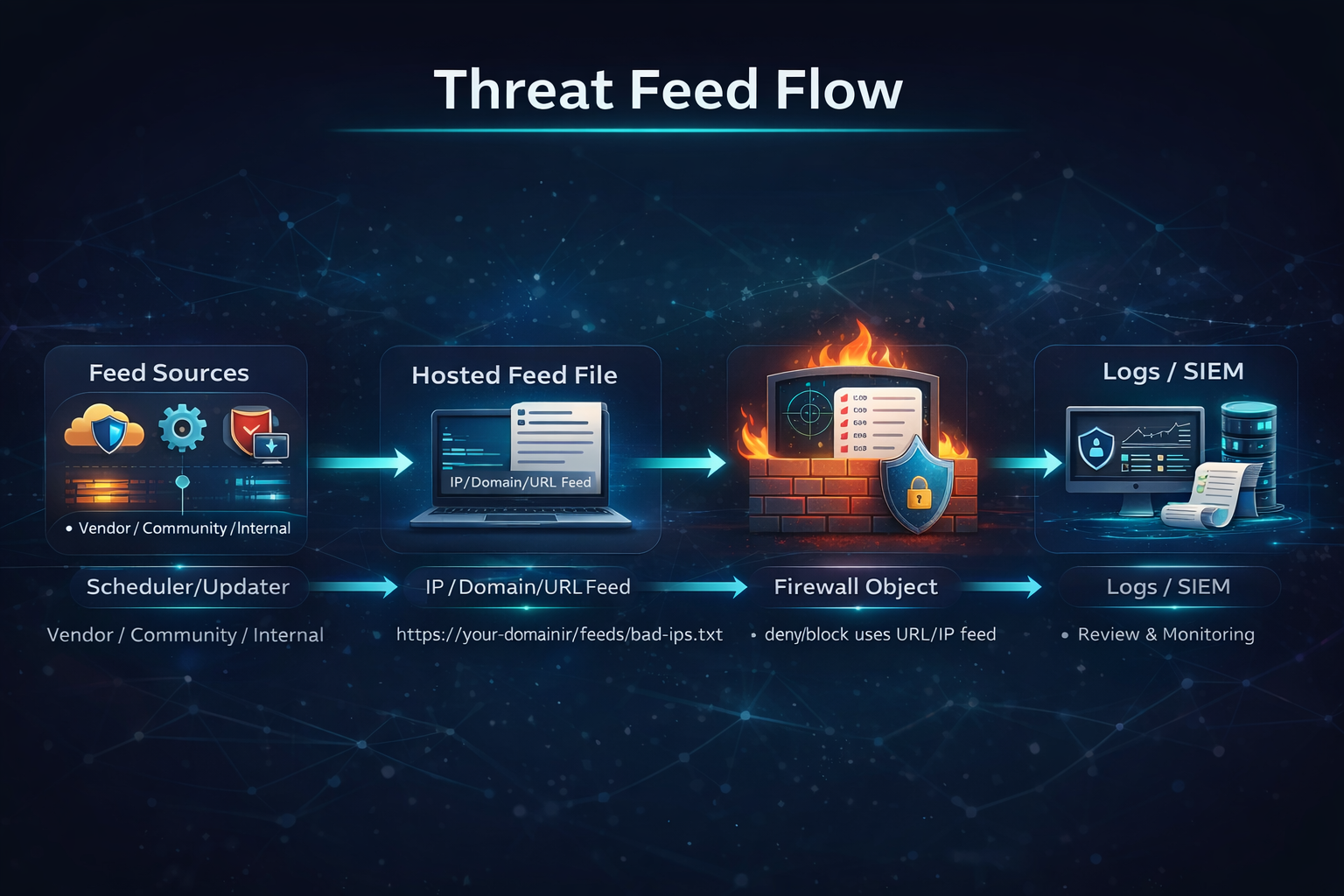
Image 1 (Architecture)
Caption: “Threat Feed Flow: Source → Hosted Feed File → Firewall Object → Policy Block + Logs → SIEM”
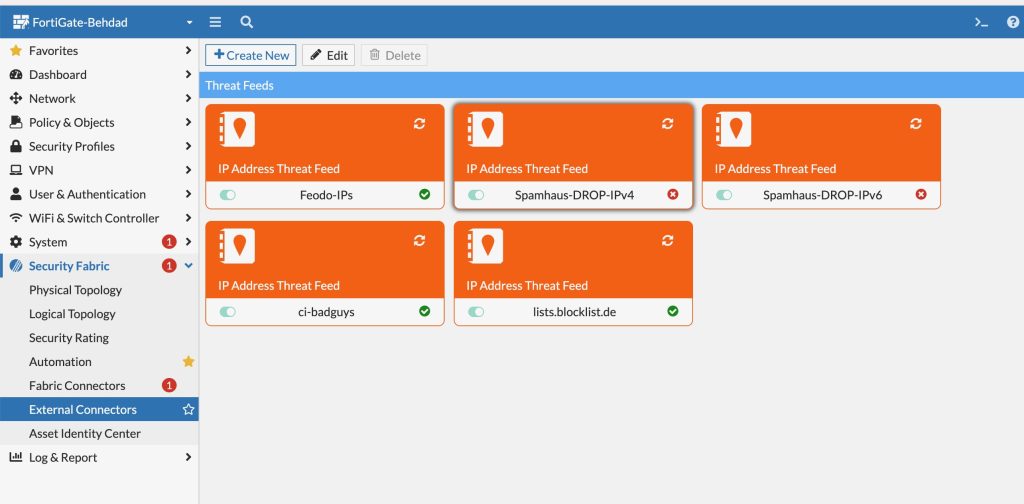
Image 2 (FortiGate External Threat Feed Object)
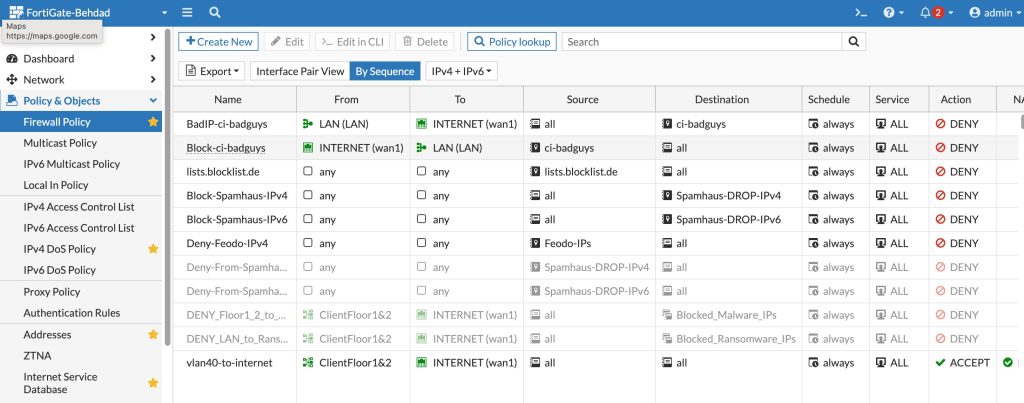
Caption: “Creating the external threat feed object and configuring refresh settings.”
Image 3 (Firewall Policy)
Caption: “Outbound deny policy using the threat feed address object (log enabled).”
Image 4 (Logs / SIEM)
Caption: “Blocked connections from internal clients to known malicious indicators (IOC hits).”